TNEB Excel guide
TNEB Bill Calculator in Excel: Formula, Steps and Checks
Build a simple worksheet for estimating domestic electricity usage, then compare the result with the official bill before you rely on it.
- Start with the current and previous meter readings
- Keep units, slabs and adjustments in separate columns
- Use the official portal for the final payable amount
Quick answer
What should the Excel calculator do?
A useful TNEB bill calculator in Excel starts with the meter readings, converts the difference into consumed units, and then applies the domestic slab rules that you have chosen to model. The sheet should show each step instead of hiding the result inside one long formula.
This approach is helpful when you want to compare months, test a higher-usage scenario, or understand why the estimate changes after a slab boundary. It is a planning worksheet, not a replacement for an official TANGEDCO or TNPDCL bill, tariff order, arrears record, subsidy adjustment or payment status.
If you only need a quick number, use the site's domestic calculator. If you need a repeatable record, follow the columns and formulas below, then keep a note of the billing period and tariff assumption beside each result.
Do not enter the cumulative meter reading as units. Units for the period normally come from current reading minus previous reading.
The four-part workflow
- Record the billing period and both meter readings.
- Calculate the difference and check that it is not negative.
- Split the units across the domestic slab bands you are modelling.
- Compare the estimate with the official bill and record any difference.
Step 1
Set up the Excel inputs before writing formulas
Keep raw inputs separate from calculated outputs. This makes it easier to correct a reading without rewriting the bill logic.
| Input | Why it matters | Example entry |
|---|---|---|
| Billing period | Identifies the month or cycle being compared | June–July |
| Previous reading | The starting meter value for the period | 1,240 |
| Current reading | The ending meter value for the period | 1,410 |
| Consumed units | The difference used by the slab calculation | 170 units |
| Tariff assumption | Records which domestic rule set the estimate follows | Domestic planning estimate |
Step 2
Build a worksheet that is easy to audit
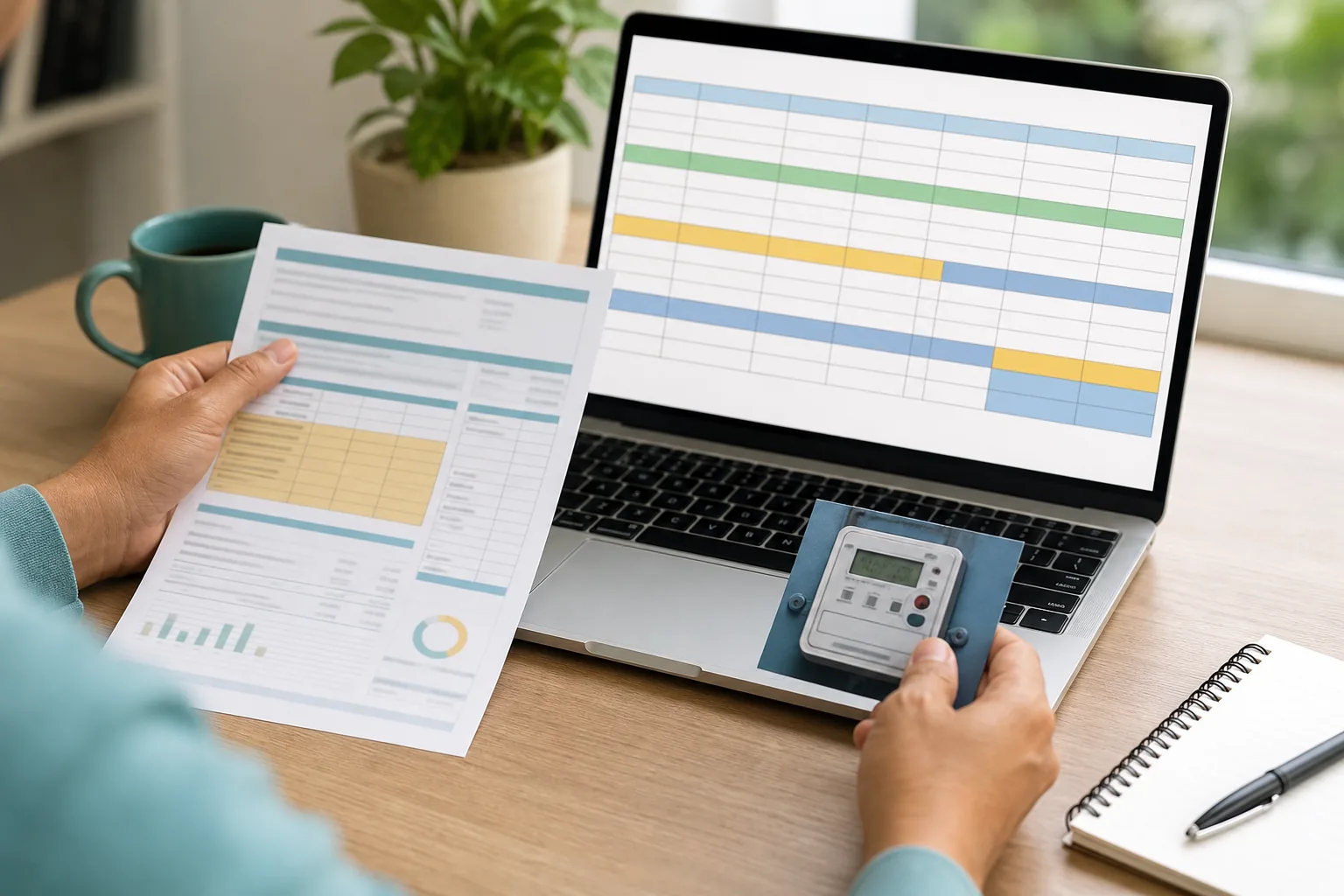
Create one row for each billing period and use stable column names such as Period, Previous Reading, Current Reading, Units, Estimated Charge and Notes. A second table can hold the slab bands and rates used by your model. Keeping the bands in their own area means you can review or update an assumption without touching the reading history.
Use data validation or a short note for fields that are easy to misunderstand. For example, label the reading columns as meter readings and label the result as units. If the bill covers a different number of days, mention that in Notes instead of pretending that every cycle is identical.
A clean worksheet also helps you compare an Excel estimate with the official bill. The difference may come from fixed charges, subsidies, arrears, taxes, meter status, rounding, billing days or a tariff category that your simple domestic model does not include.
Recommended column order
- Period and bill date
- Previous meter reading
- Current meter reading
- Units consumed
- Estimated energy charge
- Fixed charges or adjustments noted separately
- Official bill amount and variance
Simple row example
If the previous reading is 1,240 and the current reading is 1,410, the period usage is 170 units. Put 170 in the units column only after the subtraction has been checked; do not replace the two original readings with the result.
Step 3
Use separate formulas for units and slab amounts
The first formula should calculate consumption. If B2 contains the previous reading and C2 contains the current reading, a defensive formula is =MAX(0,C2-B2). The MAX wrapper prevents a negative estimate when a reading was typed incorrectly, but it should not hide the error: add a note or conditional formatting when the current reading is lower than the previous one.
For the charge, use one row per band or a clearly documented nested formula. A band table is easier to inspect because each row shows the units allocated to the band, the assumed rate and the resulting amount. Avoid copying an old rate into the sheet without recording its date and source.
Units consumed
Subtract the previous reading from the current reading. Keep the original readings visible for review.
=MAX(0,C2-B2)Units in a band
For a band with a lower boundary in E2 and an upper boundary in F2, calculate only the units that fall inside that range.
=MAX(0,MIN($D2,F2)-E2)Band charge
Multiply the units assigned to the band by the rate stored in the rate column. This makes the rate assumption easy to replace.
=G2*H2Estimated total
Add the band charges, then keep fixed charges, arrears and other official adjustments in separate cells rather than hiding them.
=SUM(I2:I8)+J2The formulas illustrate spreadsheet structure. Confirm the current domestic tariff, free-unit treatment and any special adjustment with the official source before using an estimate for a payment decision.
Step 4
Check the Excel result before trusting it
A calculator can be mathematically consistent and still disagree with the official bill. The final check should therefore compare the inputs, the billing period and the tariff assumption before comparing rupee totals. If the official bill has arrears, a subsidy, a fixed charge or a different consumer category, record that reason rather than forcing the spreadsheet to match.
The most useful check is repeatability: enter a second month, copy the formulas down, and confirm that only the intended cells change. If one month suddenly shows a negative usage, an unusually high slab allocation or a blank rate, fix the input or formula before interpreting the amount.
Reading check
Confirm that both readings belong to the same meter and that the current reading is not lower because of a typing or rollover issue.
Period check
Compare the worksheet period with the bill period. A longer or shorter cycle can make two similar monthly readings look different.
Tariff check
Write down the date and category behind the slab assumption. Do not present a domestic estimate as commercial, industrial or official tariff advice.
Amount check
Compare energy charge, fixed charges, arrears, taxes and official adjustments separately before comparing the final payable amount.
Common mistakes
Why an Excel estimate may not match the bill
Treat differences as clues to investigate, not as proof that the official bill is wrong or that the worksheet is correct.
Using the current reading as units
The current meter reading is cumulative. Use the difference between the current and previous readings for the billing period.
Mixing tariff categories
Domestic, commercial, agricultural and other connections may use different rules. Keep the worksheet scope explicit.
Ignoring fixed charges or arrears
A unit-only model may explain energy charges but not every line on the official bill. Show those lines separately.
Keeping an undated rate
Tariff assumptions can change. Add a source date and verify current information before using the sheet for payment planning.
Before payment
Use the official portal for the final amount
This page explains an Excel planning method. For bill status, arrears, payment, receipts and service records, open the official TNEB/TANGEDCO/TNPDCL route and verify the consumer details there.
FAQ
TNEB bill calculator in Excel questions
Can I build a TNEB bill calculator in Excel?
Yes. Start with the previous and current meter readings, calculate the units consumed, allocate those units to the slab bands you are modelling, and keep fixed charges or adjustments separate. The result is an estimate, not an official bill.
What is the basic Excel formula for units?
If the previous reading is in B2 and the current reading is in C2, =MAX(0,C2-B2) is a simple defensive formula. Check a lower current reading separately instead of silently accepting a zero result.
Should I enter the meter reading or the units?
Enter both readings when you have them. The worksheet should calculate the units for the billing period by subtracting the previous reading from the current reading.
Why does my Excel amount differ from the official bill?
The official bill may include fixed charges, arrears, subsidies, taxes, meter status adjustments, rounding, different billing days or a tariff category that the simple worksheet does not model.
Is this an official TNEB Excel calculator?
No. It is an educational planning method from TNEB Bill Calculator. Use the official TNEB, TANGEDCO or TNPDCL portal to verify the payable amount and payment status.
Can I use the same sheet for commercial billing?
Do not assume that a domestic worksheet applies to commercial, industrial or agricultural connections. Those categories can use different rules, so verify the category and official tariff before modelling them.