TNEB bill download guide
TNEB Bill Download Online: Get Your PDF Bill Copy
Use the official e-Invoice route to download a TNEB bill online, save a clear PDF or print copy, and understand when Bill Status or e-Receipt is the better page.
- Find the official e-Invoice page
- Keep consumer and registered mobile details ready
- Save a PDF or print copy for your records
- Separate a bill copy from a payment receipt
Quick answer
How to Download a TNEB Bill Online
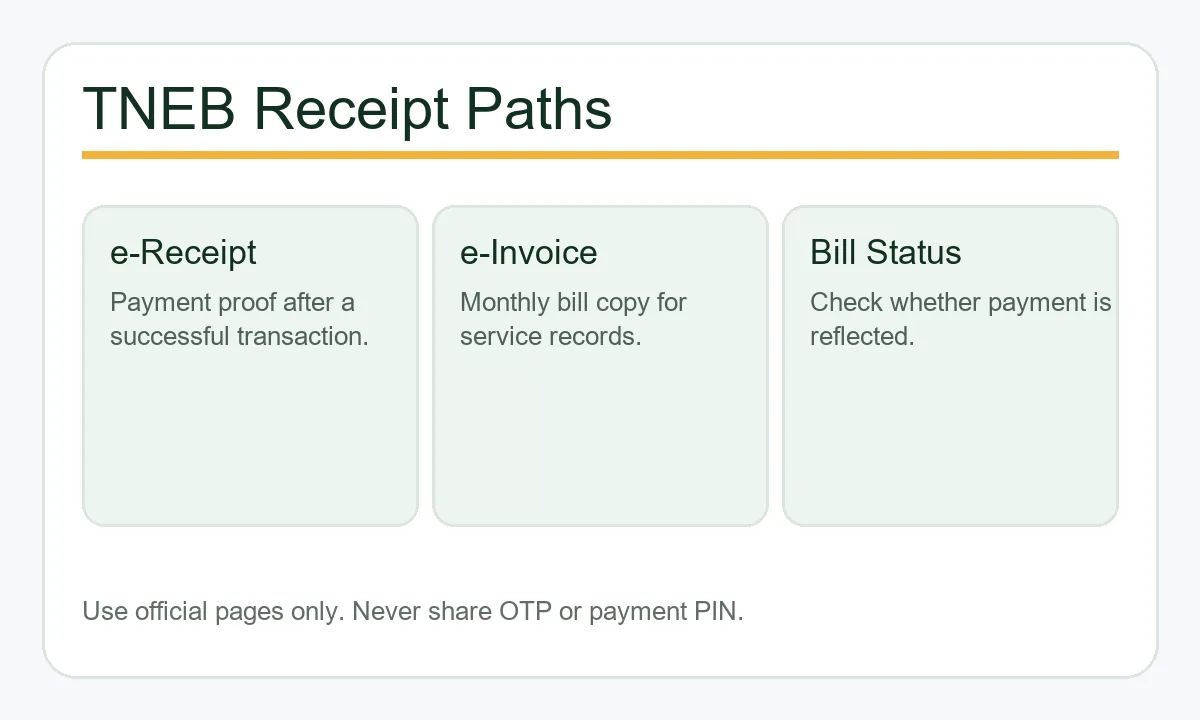
To download a TNEB bill online, open the official e-Invoice page, enter the consumer or service connection number exactly as printed on the bill, provide the registered mobile number and billing period when requested, then use the page's download or print option. The generated document is the bill copy for that period. It is different from an e-Receipt, which proves a payment, and from Bill Status, which shows whether dues or a recent payment are reflected.
TNEB is the common search phrase, while current official pages may show TNPDCL or TANGEDCO naming. Check the full domain before entering any consumer detail. This guide does not ask for, transmit, or store your service number, mobile number, OTP, UPI PIN, card PIN, or banking password.
Prepare these details
- Consumer number or service connection number copied from the bill without removing leading zeroes.
- Registered mobile number if the official e-Invoice page asks you to verify the service.
- Billing month and year for the bill copy you need, especially when retrieving an older invoice.
- The official Bill Status or payment receipt reference if the bill was already paid and you are checking records.
Choose the right document
TNEB Bill Copy vs e-Invoice, Receipt, and Bill Status
The phrase TNEB bill download can mean a monthly invoice, proof of payment, or a status screen. Choosing the correct official route prevents a failed search and avoids paying twice.
| Official page or document | What it provides | Use it when |
|---|---|---|
| e-Invoice or bill copy | A bill for a selected billing period with the amount, units, service details, and due information shown by the official portal. | You need a TNEB bill PDF, printout, address proof attachment, household record, or a copy for a particular month. |
| Bill Status | A current account or dues lookup that helps show whether payment is reflected and whether an amount remains payable. | The bill is missing, a payment was just made, or you need to confirm the current account state before paying again. |
| e-Receipt | Proof that a payment transaction was recorded, usually linked to a receipt number or transaction date. | You need payment evidence for reimbursement, records, a landlord, a society, or a complaint. |
| Quickpay acknowledgement | A payment acknowledgement from the Quickpay flow, which can be useful while settlement is still being posted. | You paid through Quickpay and have an acknowledgement or bank reference but the bill copy is not yet available. |
Download steps
TNEB Bill Download Steps: Save a PDF Safely
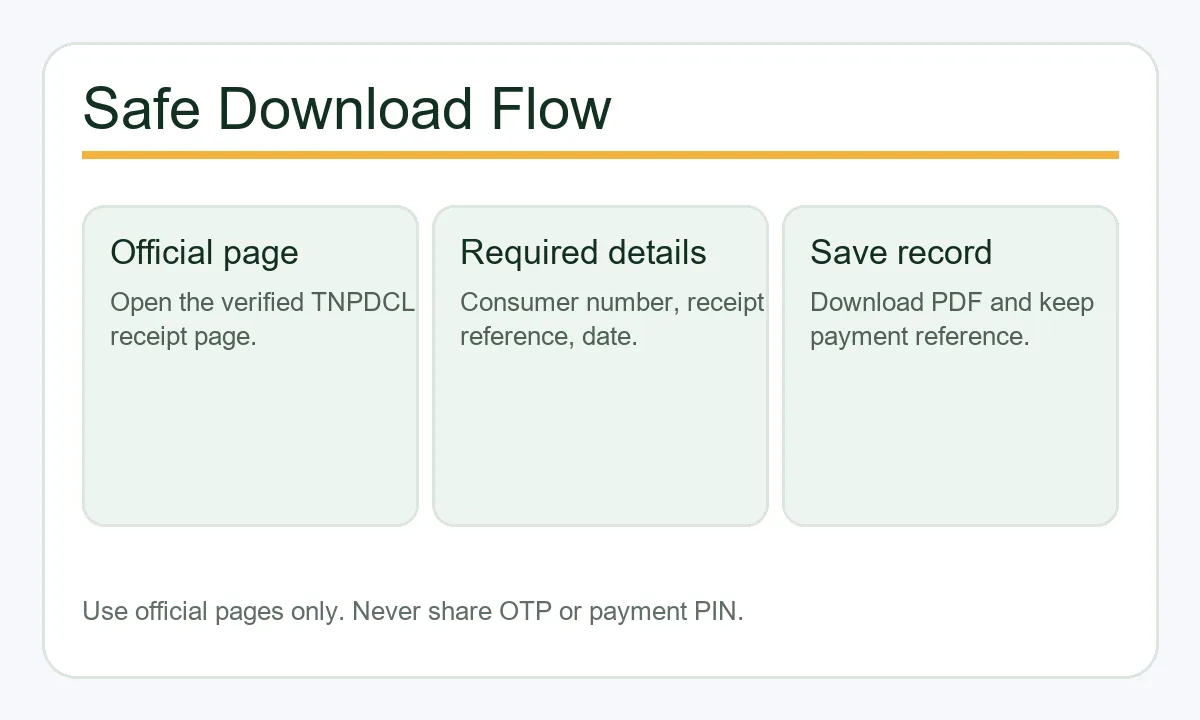
The official interface may change, but the safe workflow is consistent. Start from a trusted bookmark or the official link below, confirm the domain, choose e-Invoice or bill copy, and enter only the fields requested by that page. Do not use a random form that asks for an OTP, UPI PIN, card PIN, banking password, or remote-access permission.
Step-by-step bill download
- Open the official e-Invoice or bill-copy page. Read the address bar and avoid look-alike domains, shortened links, and chat links from unknown contacts.
- Choose the consumer or service connection lookup option shown by the official page. The wording can differ after a portal redesign.
- Enter the consumer number exactly as it appears on the electricity bill, including leading zeroes, region digits, and section information.
- Enter the registered mobile number or other verification field only when the official page requests it. Stop if the details shown do not match your service.
- Select the billing month and year, if the page offers a period selector, then submit the lookup once. Repeated taps can create duplicate requests or confusing errors.
- Review the service details, billing period, units, amount, and due information before saving. A mismatch is a reason to stop and recheck the number.
- Use Download, Print, or Save as PDF in the official result view. Give the file a useful name such as TNEB-2026-09-bill.pdf and keep a second copy in a safe folder.
Simple record-keeping example
If you need the September 2026 bill for a rental file, save the official result as TNEB-September-2026-bill.pdf, note the service connection number separately, and keep the e-Receipt in a different folder. The bill copy explains the period and amount; the receipt proves payment.
Troubleshooting
Why a TNEB Bill Download May Fail
A missing bill is often a routing, format, timing, or registration problem. Work through the checks below before creating another payment or sharing personal information with an unofficial helper.
The page cannot find the service
Copy the consumer or service connection number from the latest bill, preserve leading zeroes, and check that you selected the correct domestic or commercial path. Do not guess a digit from memory.
The registered mobile number does not match
An old mobile number can prevent e-Invoice or status lookup. Use the official mobile-number update route or support channel rather than sending the number to a private contact.
The current month is not available
A new bill may not be posted yet, or the portal may be undergoing maintenance. Check Bill Status later and keep the previous bill or payment reference as a temporary record.
Payment was made but the bill still looks unpaid
A bill copy and payment receipt answer different questions. Check Bill Status or the same Quickpay flow, keep the bank or UPI reference, and avoid a second payment until the official record is updated.
An unofficial link asks for sensitive data
Close any page requesting an OTP, UPI PIN, card PIN, banking password, screen sharing, or remote-control app for a bill download. Use the official domains listed in this guide instead.
A clearer bill-copy workflow
What to Check Before Saving a TNEB Bill Copy
A reliable TNEB bill download is a document workflow, not a calculation. The official bill copy should represent one billing period for one service connection. Before saving it, compare the consumer or service connection number, billing month, units, amount, and service details with the information you expect. If the portal shows a different name, address, or connection, stop rather than treating the result as a valid copy.
The official route can change labels as electricity services move between TNEB, TANGEDCO, and TNPDCL branding. Check the complete domain and use a bookmark created from an official page; the official website remains the source of truth for document availability and account data.
Confirm the period
A PDF for one month is not proof that another month's bill is paid. Check the billing month, due date, units, and amount before filing the copy.
Separate document types
Use e-Invoice for a bill copy, Bill Status for current dues, and e-Receipt for payment proof. Linking the wrong page is a common reason for a failed search.
Treat security as part of the task
A legitimate bill download does not require OTP sharing, UPI PIN, card PIN, banking credentials, remote-control software, or payment to a private individual.
Official verification
Open the Official TNEB Bill and e-Invoice Routes
This guide explains the steps, but only the official portal can generate your account's bill copy. Confirm the domain and page context before entering service details. If a link changes, start from the official TANGEDCO or TNPDCL navigation rather than a copied form.
FAQ
TNEB Bill Download FAQ
How do I download a TNEB bill online?
Open the official e-Invoice or bill-copy page, enter the consumer or service connection number and the registered mobile or billing period requested, then save the generated result with Download or Print. Confirm the domain before entering details.
Can I download a TNEB bill as a PDF?
If the official result view provides a Download or Print option, use Save as PDF from that page and check the billing month, service details, units, and amount before storing the file.
Is a TNEB bill copy the same as an e-Receipt?
No. A bill copy or e-Invoice describes a billing period and amount. An e-Receipt proves that a payment transaction was recorded. Use Bill Status when you need to know whether dues or a recent payment are reflected.
What details are needed for an EB bill download?
The official page commonly asks for the consumer or service connection number and may ask for the registered mobile number and billing month. Keep the exact details from the bill and do not remove leading zeroes.
Why can I not find my latest TNEB bill?
The bill may not have been posted, the mobile number may be unregistered, the service number may contain a copied digit error, or the portal may be temporarily unavailable. Check Bill Status later and record the error before contacting official support.
What should I do if my TNEB bill was paid but I need a copy?
Use e-Invoice for the bill copy and e-Receipt for payment proof. If the payment is not reflected, check Bill Status or Quickpay and keep the bank or UPI reference instead of paying again immediately.
Does this guide store my consumer number?
No. This page is an informational guide. It does not submit, verify, or store your consumer number, service connection number, registered mobile number, OTP, payment reference, or banking details.